Two environments on one phone
Keep everyday apps in Public and give a client project, a second account or your own private files a space in Work. Here’s how to move between them.
How it works
- Put the shared photo library and daily maps in Public.
- Set up private accounts in Work.
- Open the same app in each space and check which account appears.
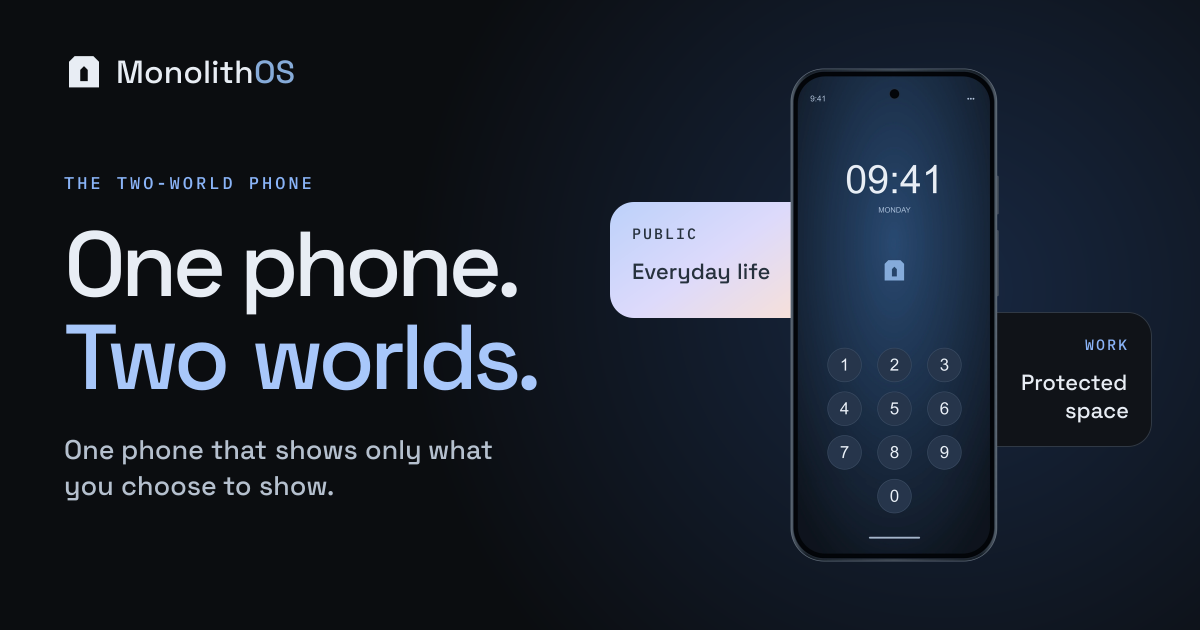
Start in the space you need
Enter your Public or Work PIN on the same lock screen. Open your calendar, messenger or photo app in the space where you want its accounts and files to live.
Set up a second account
You can use the same app in both spaces. For example, use your personal email account in Public and your project email account in Work.
Put your phone down
Use the Close Work tile, press Power, or let the screen time out to close Work. If a Work call is active, turning off the screen keeps the conversation going.
Finish a call in Work
A Work call in any calling app keeps going with the screen off. Pressing Power never ends a Work call. When the call ends with the phone still locked, Work closes. Use Public for ordinary phone calls and the emergency dialer. Work has no emergency dialing screen.
Common questions
Where should I keep my everyday calendar?
Choose Public for appointments you want to see during ordinary phone use.
How do I keep two inboxes separate?
Use a distinct account in each space and check where each account syncs.
Can I reopen a Work draft?
Saved local drafts stay with the Work app. Reopen Work to continue writing.