Android work profile vs MonolithOS Work
On Android, “work profile” usually means a set of apps managed by an organization. MonolithOS uses Work as the name of a second Android user. That difference matters when you pick up your phone.
How it works
- Find out whether your organization requires managed enrollment.
- Identify the accounts you control yourself.
- Compare what appears in the launcher and how you close the private space.
Finding an app
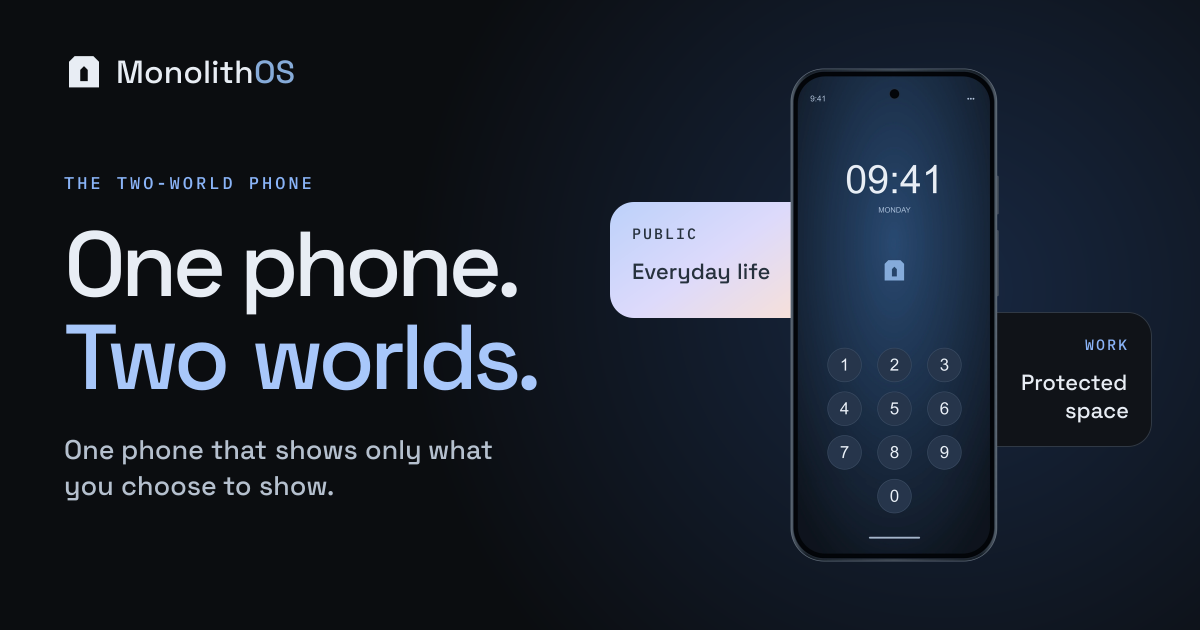
In a typical Android work profile, a briefcase badge identifies work apps and the launcher can group them under a Work tab. Lock-screen notification details depend on policy and settings. On MonolithOS, enter the Work credential at the lock screen to open its separate launcher.
At the end of the day
Android lets you pause a work profile to suspend its apps and notifications. Close Work on MonolithOS to return to Public, stop the Work user and lock its files. Public does not receive forwarded Work notifications.
When your employer supplies apps
Ask your IT team which enrollment method it requires before moving a company account. MonolithOS Work is available for your own accounts without enrolling the phone with an organization.
Google’s guide to Android work profiles
Common questions
Who sets up MonolithOS Work?
You set up Public and Work for your own accounts.
Will my employer accept it?
Ask your IT team which device and enrollment methods it supports before moving an organization account.
What do I see in the launcher?
A typical managed Android work profile identifies its apps with a briefcase badge. MonolithOS gives Work its own home screen.